en

Invert Image Colors

Invert an image's colors locally - a photo negative, each channel flipped, format preserved. No upload.

Running locally on your device ...

0%

Your files never left your device

    Is my file uploaded?

    No. Everything runs in your browser - your file never leaves your device. How this is verifiable
    No upload100% local
    Your content stays with youno third-party access
    Servers in GermanyGDPR by design
    Independently auditedTLS A+ · HTTP headers A+

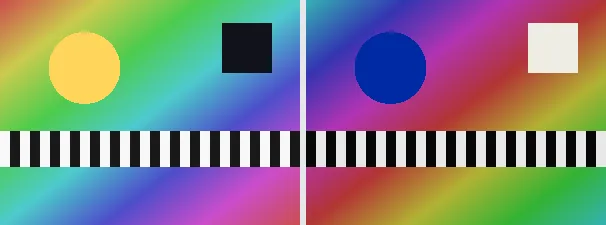
    Inverting an image flips every colour to its opposite: each red, green and blue value becomes 255 minus itself, so black turns white, white turns black, and every hue becomes its complement. The result looks like an old photographic negative. This tool applies the inversion per pixel across the whole image.

    Colour inversion is handy for turning a scanned film negative into a positive preview, for creating a striking negative effect, for checking how artwork reads in a dark-on-light versus light-on-dark layout, or simply as a quick creative filter. The output keeps your original format and dimensions - a PNG stays a PNG (transparency preserved), a JPEG stays a JPEG.

    Everything runs entirely locally in your browser on a canvas (no upload, even offline) - your image never leaves your device. The transform is exact: applying it twice returns the original pixels. Animated images are flattened to a single frame.

    Specifications

    Specifications
    Input formatsJPG, JPEG, PNG, WEBP
    Output formatJPG
    Batch processingYes
    ProcessingLocally in your browser (JavaScript)
    File uploadNone

    In 3 steps

    1. Drop or tap your image (PNG, JPEG or WebP).
    2. Each colour channel is flipped (255 minus the value) on a canvas.
    3. Download the inverted image (several at once as a ZIP).

    Limitations: Inverts an image's colours by replacing each red, green and blue value with 255 minus itself (a photographic negative); alpha is kept. The original format and dimensions are preserved (PNG keeps transparency; JPEG flattens onto white). Animated inputs are reduced to a single frame. Applying it twice returns the original.

    FAQ

    Is my image uploaded?

    No. The inversion runs entirely locally in the browser on a canvas - even offline. Your image never leaves your device.

    What exactly does invert do?

    Each colour channel becomes 255 minus its value, so black and white swap and every hue becomes its complement - a photographic negative.

    Can I invert back to the original?

    Yes. Inversion is its own opposite: running the tool again on the inverted image returns the original colours.

    Is transparency kept?

    Yes. The alpha channel is left unchanged; only the red, green and blue values are flipped. A PNG keeps its transparency.

    Related tools